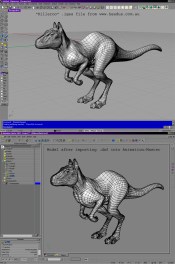
Instead of just exporting a surface and letting Rhino triangulate a polygon mesh (which is generally unusable…), it would be more ideal to convert that Nurbs wireframe to patches–right? Here’s how:
Select the surface. Choose Edit>Rebuild from the menu. In this dialog you can increase the U and V control points, if needed for resolution, and you must set the DEGREE of U and V from 3(default) to 1. This is important for the next step–you don’t want the NURBS control vertices to be away from the surface.
Next, choose Tools>Polygon Mesh>From Nurbs Control Polygon. This will create a quad polygon mesh that exactly corresponds to the NURBS wireframe. [because you changes the UV degree to 1, there is only a CV at each corner of the grid].
File>Export Selected and save the mesh as Release12 .dxf in the DXF options dialog check “Save polygon meshes as 3D faces”.
In A:M, right-click in the modeling window Import>Autodesk DXF from the context menu. If you used the settings that I said, the file will import perfectly (and instantly–if it hangs, your DXF settings aren’t right).
If you found this tutorial valuable, please consider making a contribution!

Mobile Site | Full Site
Get a free blog at WordPress.com Theme: WordPress Mobile Edition by Alex King.
Hi , and thank you for this.
here is my question: are all the spline in a good continuity ? no broken splines ? or bad direction ?
Regards
LikeLike
By maddle on November 8, 2009 at 7:58 pm
where the .iges surfaces are not continuous, neither is the patch mesh. You will have to go in and stitch surfaces together to make sure it deforms smoothly. Of course if it is mechanical, or won’t have to deform across the seam, you are good to go!
LikeLike
By zandoria on January 27, 2011 at 4:54 pm